
15 min read
Overview
In this guide, we'll walk you through how to leverage the Quicknode Admin API to manage your Quicknode endpoints programmatically. We'll cover how to create and update endpoints, search and filter your endpoint fleet, set rate limits, manage endpoint tags, run bulk operations, and control your spending by monitoring usage.
- The Quicknode Admin API gives you full programmatic control over your endpoint fleet: create, query, configure, and monitor endpoints without touching the dashboard
- Search and filter endpoints with
GET /endpointsusingsearch=, network, status, tag, and other params; the response includesname,status,is_dedicated,is_flat_rate, andpagination - Pause or unpause multiple endpoints in a single
POST /endpoints/bulk/statuscall - Organize your fleet with account-level tags using
GET /endpoints/tags,POST /endpoints/bulk/tags, and related endpoints, then attribute costs by tag withGET /usage/rpc/by-tag - Retrieve the full security config for any endpoint via
GET /endpoints/{id}/securitywithout fetching the entire endpoint object - Fetch all URLs for an endpoint (including all network URLs for multichain endpoints) via
GET /endpoints/{id}/urls
What You Will Do
- Manage your Quicknode endpoints programmatically using the Admin API
- Search, filter, and sort your endpoint fleet
- Pause and unpause multiple endpoints in a single bulk call
- Organize endpoints with account-level tags
- Monitor and control your spend and API usage efficiently
What You Will Need
- A paid Quicknode account
- An understanding of REST APIs and how to interact with them
The Admin API is available for all paid accounts. Check pricing for details.
Introduction to the Quicknode Admin API
The Quicknode Admin API offers powerful programmatic access to all actions available within the User Dashboard, enabling you to manage your infrastructure, monitor performance, and control your costs more effectively. This API allows for full endpoint management, usage monitoring, and security configuration.
Why Use the Admin API?
- Complete Control: Manage all aspects of your Quicknode setup without manually interacting with the User Dashboard.
- Automation: Automate endpoint creation, security configurations, rate limit adjustments, and team management operations.
- Team Organization: Programmatically create teams, manage memberships, and control endpoint access at scale.
- Cost Management: Monitor your usage and spending in real-time, enabling you to set up alerts or even programmatically disable endpoints if you approach a usage threshold.
- Enhanced Monitoring: Utilize Prometheus to build a customized Grafana dashboard for better visibility.
Quicknode Admin API Resources Overview
Below is a summary of all REST API resources available for interacting with the Quicknode User Dashboard:
- Billing: Retrieve billing information, including invoices and payments.
- Chains: Fetch a list of all Quicknode-supported chains.
- Endpoints: Create, retrieve, update, and delete Quicknode endpoints to manage your infrastructure programmatically.
- Endpoint Metrics: Access detailed metrics for specific Quicknode endpoints over a designated time period, including method calls, response status, breakdowns, and maximum response times.
- Endpoint Rate Limits: Update rate limits for a specific Quicknode endpoint.
- Endpoint Security: Manage security settings, including referrer, token, IP, domain mask, and JWT configurations, blocked IPs, the method blocklist, block range limits, and request filters.
- Teams: Create, retrieve, and delete teams; invite and remove team members; list and update endpoint access for teams.
- Tags: Create, rename, and delete account-level tags; bulk-apply or remove tags across multiple endpoints; and filter endpoints by tag.
- Usage: Retrieve usage data, including total usage for a specified time range, and view usage data grouped by endpoint, method, chain, or tag.
For detailed documentation, please refer to our Admin API documentation.
Prerequisites
Quicknode Account and API Key
Creating your API key is straightforward. If you haven't signed up already and created any endpoint, you can create an account here.
To create your keys, log in to your Quicknode Account, click on the avatar icon on the top left, and select API Keys. It will bring you to the API Keys page.
Generate an API key with appropriate permissions (you'll need CONSOLE_REST to use the Admin API) and keep your API key handy as you'll use it.
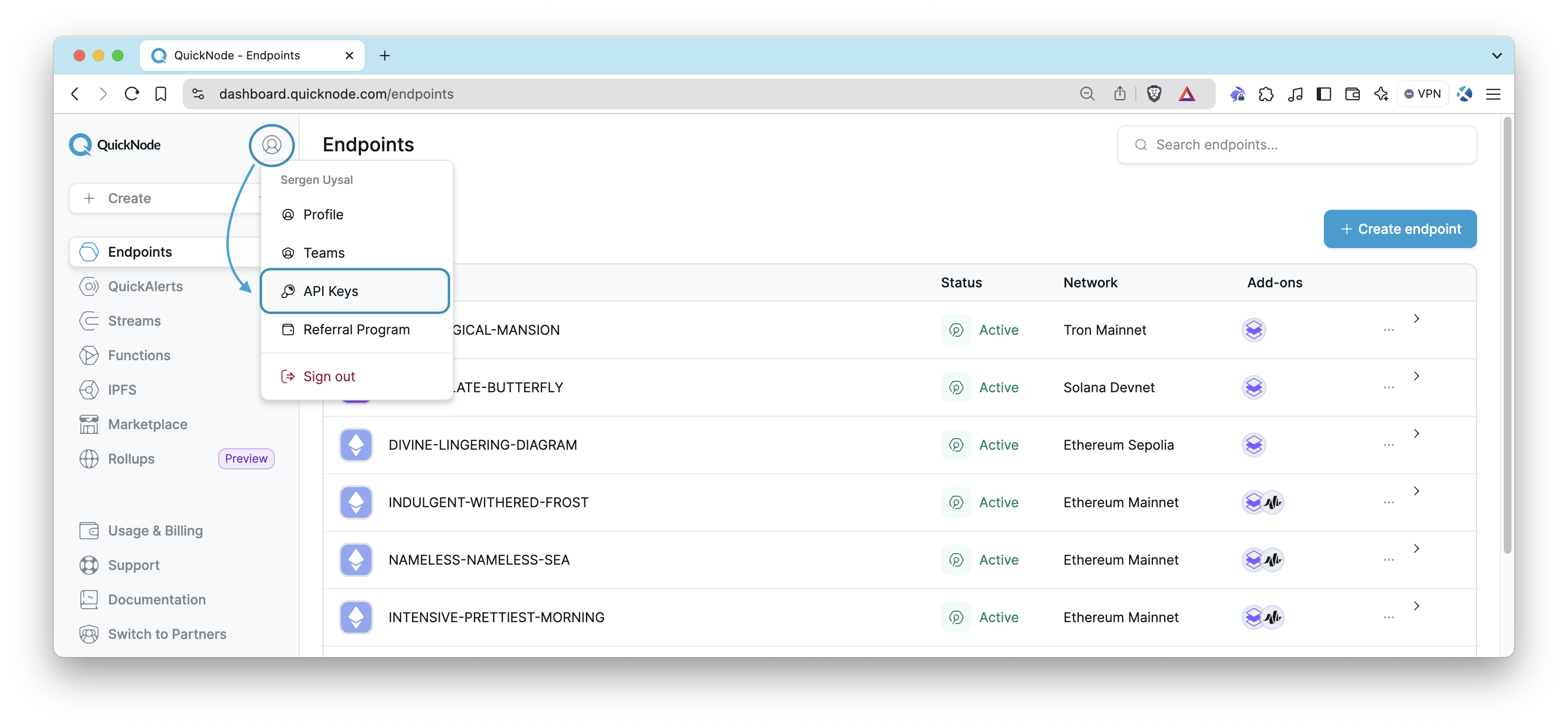
By default, everyone on your account can see an API key. To limit that, an Admin assigns the key to one or more teams from the gear icon on the API Keys page. Only those members then see it. The assignment changes visibility, not what the key can call. See API Key Visibility.
Managing Endpoints with the Admin API
To use the Admin API, you must authenticate your requests by including your API key in the HTTP headers like the one below:
curl -X GET 'https://api.quicknode.com/v0/usage/rpc' \
     -H 'accept: application/json' \
     -H 'x-api-key: YOUR_API_KEY_HERE'
Don't forget to update YOUR_API_KEY_HERE section with your own API Key in all cURL commands that will be shared in this guide.
Before creating or managing endpoints, it's important to retrieve the list of available blockchain networks using the /chains endpoint, as you'll need this information for various actions.
You can explore all endpoint details and parameters using the Swagger UI or import the OpenAPI spec directly into tools like Postman or use it to generate API clients.
Retrieving Supported Chains and Networks
To get a list of all supported chains and their networks, use the following cURL command:
curl -X GET 'https://api.quicknode.com/v0/chains' \
     -H 'accept: application/json' \
     -H 'x-api-key: YOUR_API_KEY_HERE'
The response will provide you with slug values for each chain and network, which you’ll use when creating or managing endpoints. For example:
{
    "data": [
        {
            "slug": "linea",
            "networks": [
                {
                    "slug": "linea-mainnet",
                    "name": "Linea Mainnet"
                }
            ]
        },
        {
            "slug": "avax",
            "networks": [
                {
                    "slug": "avalanche-mainnet",
                    "name": "Avalanche Mainnet"
                }
            ]
        }
    ]
}
Creating an Endpoint
To create a new endpoint, use the POST method. You’ll need to specify the chain and network values retrieved from the /chains endpoint.
curl -X POST 'https://api.quicknode.com/v0/endpoints' \
     -H 'accept: application/json' \
     -H 'x-api-key: YOUR_API_KEY_HERE'
    --data '{
        "chain": "avax",
        "network": "avalanche-mainnet",
    }'
The response will include details of the newly created endpoint, including its id, which you’ll use for further management.
Retrieving Your Endpoint ID
If you already have an endpoint and need to find its id, you can do so in two ways:
Using the Admin API
You can list all your endpoints associated with your account using the following command:
curl -X GET 'https://api.quicknode.com/v0/endpoints' \
     -H 'accept: application/json' \
     -H 'x-api-key: YOUR_API_KEY_HERE'
The response includes all your endpoints along with their respective id values, as well as enhanced fields: name, status (active or paused), is_dedicated, is_flat_rate, and a pagination object with total, limit, and offset.
The endpoint also supports search, filtering, and sorting to help you manage endpoints at scale:
| Parameter | Type | Description |
|---|---|---|
search | string | Search by subdomain or label |
networks | array | Filter by network name(s), e.g., ethereum-mainnet |
statuses | array | Filter by active or paused |
labels | array | Filter by label(s) |
dedicated | boolean | Filter to dedicated endpoints only |
is_flat_rate | boolean | Filter to flat-rate endpoints only |
tag_ids | array | Filter by tag ID(s) |
tag_labels | array | Filter by tag label(s) |
sort_by | enum | Sort by name, status, network, label, tags, usage, or created_at |
sort_direction | enum | asc or desc |
limit / offset | integer | Paginate through results |
Note: tag_ids and tag_labels are mutually exclusive.
For example, to find all active Ethereum mainnet and Solana mainnet endpoints sorted by name:
curl -X GET 'https://api.quicknode.com/v0/endpoints?networks[]=ethereum-mainnet&networks[]=solana-mainnet&statuses[]=active&sort_by=name&sort_direction=asc' \
     -H 'accept: application/json' \
     -H 'x-api-key: YOUR_API_KEY_HERE'
Using the Quicknode Dashboard
- Log in to your Quicknode dashboard.
- Navigate to the page of your desired endpoint.
- The
idwill be visible in the URL, formatted as:https://dashboard.quicknode.com/endpoints/{id}.
Retrieving Endpoint Details
To get detailed information about a specific endpoint, use its id:
curl -X GET 'https://api.quicknode.com/v0/endpoints/{id}' \
     -H 'accept: application/json' \
     -H 'x-api-key: YOUR_API_KEY_HERE'
Don't forget to replace {id} with your endpoint ID.
The response will provide details about your endpoint, including:
id: The unique identifier for your endpoint.name: The display name of the endpoint.status: Whether the endpoint isactiveorpaused.chainandnetwork: The blockchain network your endpoint is connected to.http_urlandwss_url: The HTTP and WebSocket URLs for accessing the endpoint.security: A summary of the endpoint's security settings (whether tokens, referrers, JWTs, IPs, domain masks, and other measures are enabled).rate_limits: The rate limits set for the endpoint, includingrps(requests per second),rpm(requests per minute),rpd(requests per day), and whether the rate limit is applied by IP.
is_dedicated and is_flat_rate are only returned by the list endpoint (GET /endpoints), not by the individual endpoint object. Use the list endpoint if you need those fields.
Fetching Endpoint Security Details
If you only need the security configuration for an endpoint (without fetching the full endpoint object), use the dedicated security endpoint:
curl -X GET 'https://api.quicknode.com/v0/endpoints/{id}/security' \
     -H 'accept: application/json' \
     -H 'x-api-key: YOUR_API_KEY_HERE'
Replace {id} with your endpoint ID. The response returns the full security state, including all tokens, JWTs, IP allowlists, blocked IPs, referrer rules, domain masks, and request filters configured for that endpoint. The method blocklist and block range limits have their own calls (see below).
Blocking IPs, Methods, and Block Ranges
These calls stop abuse that a whitelist does not cover. Use them to block one abusive client, turn off expensive methods, or cap the block range of eth_getLogs.
Blocked IPs. A blocked IP address or CIDR range is rejected even when it is on the IP whitelist. Blocking is enforced while the ips security option is enabled.
# Block an IP address or CIDR range
curl -X POST 'https://api.quicknode.com/v0/endpoints/{id}/security/blocked_ips' \
     -H 'accept: application/json' \
     -H 'Content-Type: application/json' \
     -H 'x-api-key: YOUR_API_KEY_HERE' \
     -d '{"ip": "203.0.113.0/24"}'
Use GET on the same path to list blocked IPs. Each entry has an id. Use it to unblock with DELETE /v0/endpoints/{id}/security/blocked_ips/{ip_id}.
Method blocklist. A blocked method is rejected even when it is on the method whitelist. The path uses the name method_blacklist. PUT replaces the full list. An empty list clears it.
curl -X PUT 'https://api.quicknode.com/v0/endpoints/{id}/security/method_blacklist' \
     -H 'accept: application/json' \
     -H 'Content-Type: application/json' \
     -H 'x-api-key: YOUR_API_KEY_HERE' \
     -d '{"methods": ["debug_traceTransaction"]}'
Block range limits. A limit sets the maximum block range for a method such as eth_getLogs. A limit only lowers the plan default range. It never raises it. PUT replaces the full map. An empty map clears it.
curl -X PUT 'https://api.quicknode.com/v0/endpoints/{id}/security/range_limits' \
     -H 'accept: application/json' \
     -H 'Content-Type: application/json' \
     -H 'x-api-key: YOUR_API_KEY_HERE' \
     -d '{"limits": {"eth_getLogs": 1000}}'
GET on the method blocklist and range limits paths returns the current values. The range limits response also lists the supported_methods for the chain of your endpoint.
Fetching Endpoint URLs
To retrieve all URLs associated with an endpoint, use GET /endpoints/{id}/urls:
curl -X GET 'https://api.quicknode.com/v0/endpoints/{id}/urls' \
     -H 'accept: application/json' \
     -H 'x-api-key: YOUR_API_KEY_HERE'
Replace {id} with your endpoint ID. For standard single-chain endpoints, this returns the HTTP and WebSocket URLs. For multichain enabled endpoints, this returns the full set of network URLs across all enabled chains, making it the preferred way to programmatically discover all connection URLs for a multichain endpoint without parsing the full endpoint object.
Updating Endpoint Rate Limits
You can update rate limits on an endpoint for requests per second (rps), requests per minute (rpm), and requests per day (rpd). These are all available at the endpoint level.
The following command updates the rate limits (250 rps, 1,000 rpm, and 10,000 rpd) for a specific endpoint:
curl -X PUT 'https://api.quicknode.com/v0/endpoints/{id}/rate-limits' \
     -H 'accept: application/json' \
     -H 'x-api-key: YOUR_API_KEY_HERE'
     --data '{
    "rate_limits": {
        "rps": 250,
        "rpm": 1000,
        "rpd": 10000
    }
}'
Managing Method Rate Limits
To create specific rate limits for particular methods on your endpoint:
curl -X POST 'https://api.quicknode.com/v0/endpoints/{id}/method-rate-limits' \
     -H 'accept: application/json' \
     -H 'x-api-key: YOUR_API_KEY_HERE' \
     -d '{
           "interval": "second",
           "methods": [
            "eth_getLogs",
            "eth_chainId"
            ],
           "rate": 100,
           "limit_by_ip": true
         }'
- interval: Specifies the time interval for the rate limit. In this example, it's set to "second", meaning the rate limit applies per second.
- methods: Lists the specific methods to which the rate limit will apply. Here, the methods
eth_getLogsandeth_chainIdare being rate-limited. - rate: Defines the maximum number of requests allowed for the specified methods within the chosen interval. In this example, the rate limit is set to 100 requests per second for each listed method.
- limit_by_ip: Optional boolean. When
true, the rate applies to each client IP instead of the endpoint as a whole. The default isfalse.
Bulk Endpoint Operations
When managing endpoints at scale, making individual API calls per endpoint is inefficient. The Admin API provides bulk endpoints that let you update status or tags across many endpoints in a single request.
Pausing and Unpausing Endpoints in Bulk
Use POST /endpoints/bulk/status to pause or unpause multiple endpoints simultaneously. Set status to "paused" to pause them or "active" to unpause them:
# Pause multiple endpoints
curl -X POST 'https://api.quicknode.com/v0/endpoints/bulk/status' \
     -H 'accept: application/json' \
     -H 'Content-Type: application/json' \
     -H 'x-api-key: YOUR_API_KEY_HERE' \
     -d '{
       "ids": ["endpoint-id-1", "endpoint-id-2", "endpoint-id-3"],
       "status": "paused"
     }'
The response reports the outcome for each endpoint individually:
{
  "data": {
    "total": 3,
    "updated_count": 3,
    "failed_count": 0,
    "results": [
      { "id": "endpoint-id-1", "success": true },
      { "id": "endpoint-id-2", "success": true },
      { "id": "endpoint-id-3", "success": true }
    ]
  }
}
Check failed_count and results to handle any partial failures.
Managing Endpoint Tags
Tags let you group and organize endpoints across your account. You can use them to filter endpoints in GET /endpoints, track usage by group with GET /usage/rpc/by-tag, and automate fleet management workflows.
Listing Account Tags
To retrieve all account-level tags (including those with zero endpoints assigned):
curl -X GET 'https://api.quicknode.com/v0/endpoints/tags' \
     -H 'accept: application/json' \
     -H 'x-api-key: YOUR_API_KEY_HERE'
The response includes each tag's id, label, and usage_count (how many endpoints currently carry the tag).
Applying Tags to Multiple Endpoints
To add a tag to multiple endpoints at once, use POST /endpoints/bulk/tags. Provide a label (the tag will be created if it doesn't exist) and the list of endpoint ids:
curl -X POST 'https://api.quicknode.com/v0/endpoints/bulk/tags' \
     -H 'accept: application/json' \
     -H 'Content-Type: application/json' \
     -H 'x-api-key: YOUR_API_KEY_HERE' \
     -d '{
       "ids": ["endpoint-id-1", "endpoint-id-2"],
       "label": "production"
     }'
The response includes the resolved tag object with its tag_id and label, which you can store for subsequent operations.
Removing Tags from Multiple Endpoints
To remove a tag from multiple endpoints, use DELETE /endpoints/bulk/tags. This call requires the numeric tag_id (returned from GET /endpoints/tags or from a previous bulk tag call):
curl -X DELETE 'https://api.quicknode.com/v0/endpoints/bulk/tags' \
     -H 'accept: application/json' \
     -H 'Content-Type: application/json' \
     -H 'x-api-key: YOUR_API_KEY_HERE' \
     -d '{
       "ids": ["endpoint-id-1", "endpoint-id-2"],
       "tag_id": 42
     }'
Renaming a Tag
Because a tag is shared across all endpoints that carry it, renaming it updates the label everywhere immediately:
curl -X PATCH 'https://api.quicknode.com/v0/endpoints/tags/{tag_id}' \
     -H 'accept: application/json' \
     -H 'Content-Type: application/json' \
     -H 'x-api-key: YOUR_API_KEY_HERE' \
     -d '{"label": "prod-us-east"}'
Deleting a Tag
To permanently delete a tag, use DELETE /endpoints/tags/{tag_id}. This call hard-fails if the tag is still assigned to any endpoints. Remove the tag from all endpoints first (using DELETE /endpoints/bulk/tags), then delete it:
curl -X DELETE 'https://api.quicknode.com/v0/endpoints/tags/{tag_id}' \
     -H 'accept: application/json' \
     -H 'x-api-key: YOUR_API_KEY_HERE'
Controlling Spend with the Admin API
The Admin API allows you to track your usage and manage spending effectively. By regularly monitoring your API usage, you can prevent unexpected overages and take proactive actions.
Fetching Your Current API Credit Usage
To retrieve your total usage within a specified time range:
curl -X GET 'https://api.quicknode.com/v0/usage/rpc' \
     -H 'accept: application/json' \
     -H 'x-api-key: YOUR_API_KEY_HERE'
The API provides a response containing key details such as credits_used, credits_remaining, and limit for your specified time range.
If you don't specify a time range by providing start_time or end_time, the current billing period is used, and the remaining credits for the period are returned.
Ensure you use Unix timestamps in second for start_time and end_time when specifying a custom range.
Example: https://api.quicknode.com/v0/usage/rpc?start_time={START_TIME}&end_time={END_TIME}
You can retrieve your total usage once per minute or hour to understand how your usage is trending. This regular polling enables you to monitor your consumption and avoid surprises.
If you wish to break down usage by endpoint, method, blockchain, or tag:
By Endpoint: Check which specific endpoints are consuming the most credits.
curl -X GET 'https://api.quicknode.com/v0/usage/rpc/by-endpoint' \
     -H 'accept: application/json' \
     -H 'x-api-key: YOUR_API_KEY_HERE'
By Method: Identify the most frequently called methods.
curl -X GET 'https://api.quicknode.com/v0/usage/rpc/by-method' \
     -H 'accept: application/json' \
     -H 'x-api-key: YOUR_API_KEY_HERE'
By Chain: Analyze usage across different blockchain networks.
curl -X GET 'https://api.quicknode.com/v0/usage/rpc/by-chain' \
     -H 'accept: application/json' \
     -H 'x-api-key: YOUR_API_KEY_HERE'
By Tag: Roll up credits and requests per account tag. The response includes an "untagged" bucket for endpoints that have no tags assigned.
curl -X GET 'https://api.quicknode.com/v0/usage/rpc/by-tag' \
     -H 'accept: application/json' \
     -H 'x-api-key: YOUR_API_KEY_HERE'
This is useful for cost attribution across teams or environments (for example, comparing usage across production, staging, and dev tagged endpoint groups).
If you’re looking to visualize your Quicknode metrics in a real-time dashboard, check out our guide on How to Build a Grafana Dashboard to Monitor Your RPC Infrastructure. It’s perfect for Enterprise plan users who want to monitor their usage with advanced visualization tools like Grafana and Prometheus. This guide walks you through setting up a comprehensive dashboard to track your endpoint performance effectively.
Conclusion
You've learned how to use the Quicknode Admin API to manage your endpoint fleet programmatically: creating and querying endpoints with advanced search and filtering, pausing or unpausing multiple endpoints in bulk, organizing endpoints with account-level tags, retrieving security configurations and all endpoint URLs (including multichain URLs) efficiently, and tracking spend by tag.
If you are stuck or have questions, drop them in our Discord. Stay up to date with the latest by following us on Twitter (@Quicknode) or our Telegram announcement channel.
Frequently Asked Questions
What is the Quicknode Admin API?
The Quicknode Admin API gives you programmatic access to all actions available in the Quicknode dashboard, including creating and managing endpoints, setting rate limits, configuring security, managing teams, and monitoring usage. It is available on all paid plans.
How do I search or filter my endpoints using the Admin API?
Use GET /endpoints with query parameters: search= to match by subdomain or label, networks[], statuses[], labels[], dedicated, is_flat_rate, tag_ids[], and tag_labels[] to filter results, and sort_by with sort_direction to control ordering. Pagination is supported via limit and offset.
Can I pause multiple endpoints at once?
Yes. Send a POST request to /endpoints/bulk/status with an ids array and status set to paused (or active to unpause). The response reports success or failure for each endpoint individually, so you can handle partial failures.
How do endpoint tags work?
Tags are account-level labels you can apply to any number of endpoints. Use GET /endpoints/tags to list all tags, POST /endpoints/bulk/tags to tag multiple endpoints at once, and DELETE /endpoints/bulk/tags to remove a tag from multiple endpoints. You can also rename a tag with PATCH /endpoints/tags/{id} (the change propagates to all endpoints immediately) or delete it with DELETE /endpoints/tags/{id} (only allowed when the tag is unassigned).
How can I track RPC usage broken down by team or environment?
Apply tags to your endpoints (for example, production, staging, dev) and then call GET /usage/rpc/by-tag. The response rolls up credits_used and requests per tag, including an untagged bucket for endpoints with no tags assigned.
How do I retrieve only the security configuration of an endpoint?
Use GET /endpoints/{id}/security. It returns the full security state (tokens, JWTs, IP allowlists, blocked IPs, referrer rules, domain masks, request filters) without fetching the complete endpoint object, which is useful when you only need to inspect or audit security settings. The method blocklist and block range limits are read with GET /endpoints/{id}/security/method_blacklist and GET /endpoints/{id}/security/range_limits.
How do I get all URLs for a multichain endpoint?
Use GET /endpoints/{id}/urls. For standard single-chain endpoints it returns the HTTP and WebSocket URLs. For multichain enabled endpoints it returns all network URLs across every enabled chain, so you can programmatically discover connection URLs.