
13 min read
Overview
Quicknode organizes account access around three distinct primitives: Members, Teams, and Roles. Members are everyone with access to your account, each assigned a role that controls what they can view and manage across the dashboard. Teams are collections of members that scope resource visibility: endpoints, API keys, Streams, and Webhooks assigned to a team are visible only to that team's members. Role-Based Access Control (RBAC) is available on all paid plans. Enterprise accounts can extend RBAC with custom roles that have configurable, per-permission access controls.
TLDR
- Quicknode account access is built on three primitives: Members (who has access and what role they hold), Teams (which endpoints, API keys, Streams, and Webhooks they can see), and Roles (
Admin,Billing,Viewerbuilt-in; unlimited custom roles on Enterprise) - Invite members from the Members page and assign a role at invite time
- Create teams to scope visibility: endpoints, API keys, Streams, and Webhooks assigned to a team are only visible to that team's members; unassigned (global) resources stay visible to everyone on the account
- RBAC is available on all paid plans; Enterprise accounts can create custom roles with fine-grained, configurable permissions
- You can belong to more than one Quicknode account, each with its own role; accept an invite to another account from the dashboard (see Joining and Switching Between Accounts)
- Automate member and team operations via the Admin API or CLI
What You Will Learn
- How to invite and manage members on your account
- How to create teams and control endpoint, API key, Stream, and Webhook visibility
- How RBAC roles (
Admin,Billing, andViewer) govern access to the dashboard - How to create and manage custom roles with configurable permissions (Enterprise)
- How to accept an invite to another Quicknode account and switch between accounts you belong to
What You Will Need
- A Quicknode account on a paid plan
- Familiarity with basic account management concepts
Key Concepts
Before diving in, here is a quick overview of accounts and the three primitives within them:
Accounts are the top-level container in Quicknode: every member, team, and role you manage belongs to one account. You can belong to more than one account, for example if a teammate invites you into their organization's account while you keep your own. See Joining and Switching Between Accounts for how invites, account switching, and per-account roles work.
Members are everyone who has access to your Quicknode account. You manage members at dashboard.quicknode.com/members. Each member is assigned a role (Admin, Billing, or Viewer) that controls what they can view and do across the dashboard.
Teams are collections of members used to scope resource visibility. You manage teams at dashboard.quicknode.com/teams. When you assign an endpoint, an API key, a Stream, or a Webhook to a team, only that team's members can see it. Resources with no team assignment are global: every member of the account can see them.
Roles are system-level permission levels assigned per member within an account, not per team. The three built-in roles are Admin, Billing, and Viewer. Enterprise accounts can also create custom roles with configurable permissions. See the Roles and Permissions section for a full breakdown.
A member does not need to belong to any team. A team assignment controls who can see an endpoint, API key, Stream, or Webhook in the dashboard. For members, it does not change what their role lets them do. For API keys, it also limits which endpoints and teams the key can reach through the Admin API. An API key's role and application restrictions still decide which actions it can take. See API Key Visibility for the access rules.


Managing Members
Members are managed from the Members page. Admins can invite new members, update roles, and remove members from the account.
Invite a Member
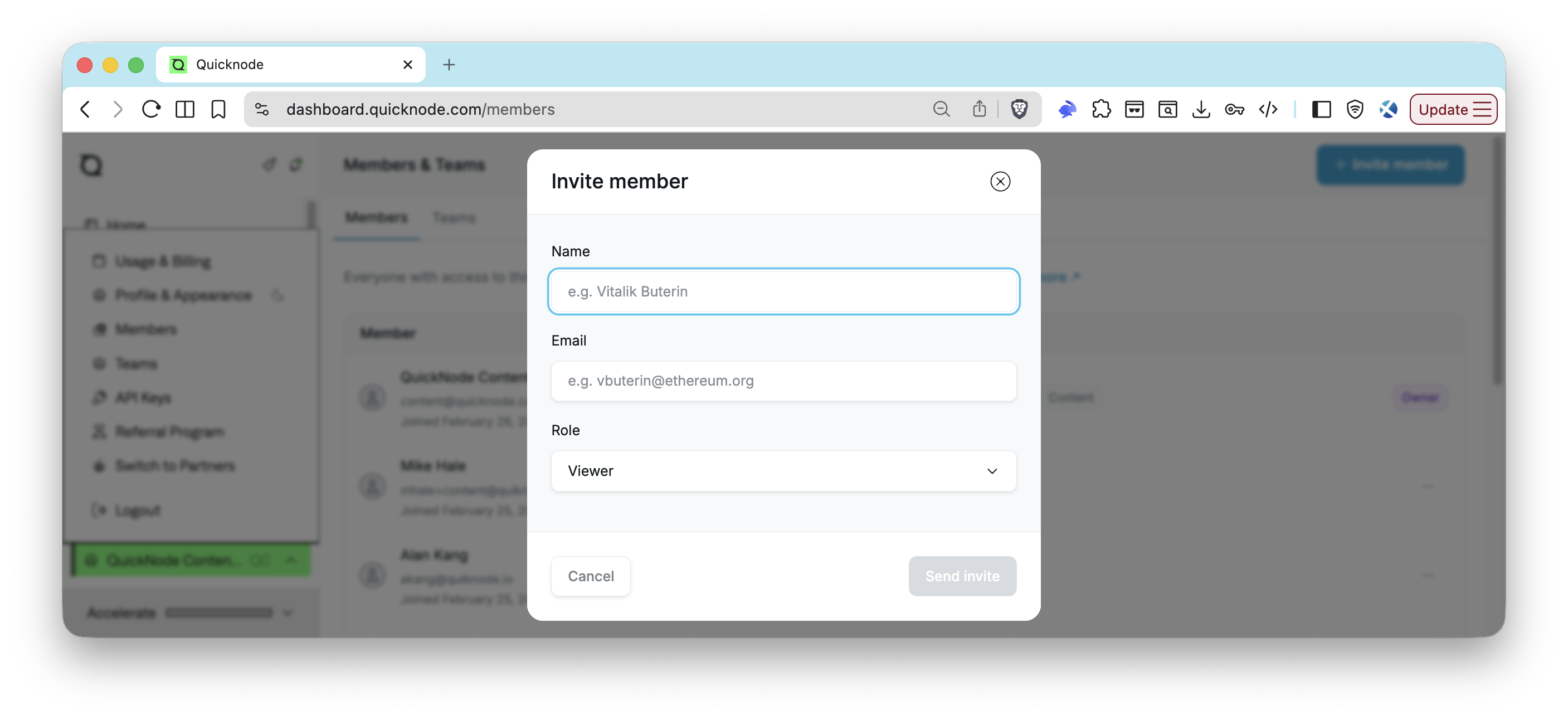
- Navigate to the Members page.
- Click Invite member.
- Enter the member's name, email address, and select a role (
Admin,Billing, orViewer). - Click Send invite. The member will receive an email invitation to join your account. If the invitee already has a Quicknode account, that email alone does not add them to yours: they must also accept the invite in the dashboard. See Accepting an Invite to Another Account.
Update a Member's Role
- Navigate to the Members page.
- Locate the member whose role you want to update.
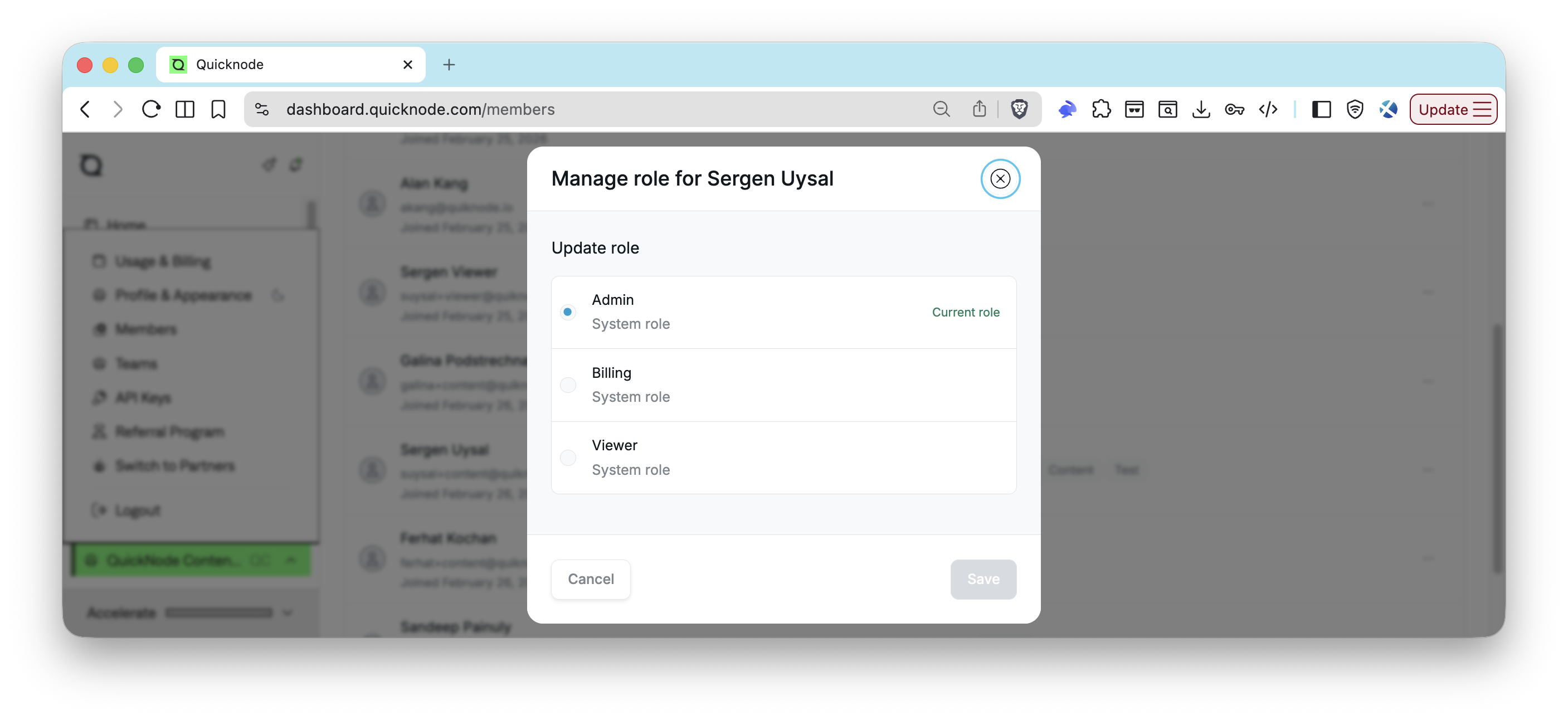
- Click the three dots (
⋯) next to their name. - Select Change role and choose a new role (
Admin,Billing, orViewer). - Confirm the change.
Note: The account owner's role cannot be changed. To reassign ownership first, see Transfer Account Ownership.
You can also update a member's role directly from a Team page: click the three dots (⋯) next to a member and select Change role to update their role without navigating to the Members page. As roles are assigned at the member level, this change will apply across all teams and endpoints within this account.
Remove a Member
- Navigate to the Members page.
- Locate the member you want to remove.
- Click the three dots (
⋯) next to their name. - Select Remove from account and confirm.
Note: The account owner cannot be removed. Transfer ownership first if you need to remove the primary account holder.
Transfer Account Ownership
The account owner can transfer full ownership to another member. This is a permanent action.
- Navigate to the Members page.
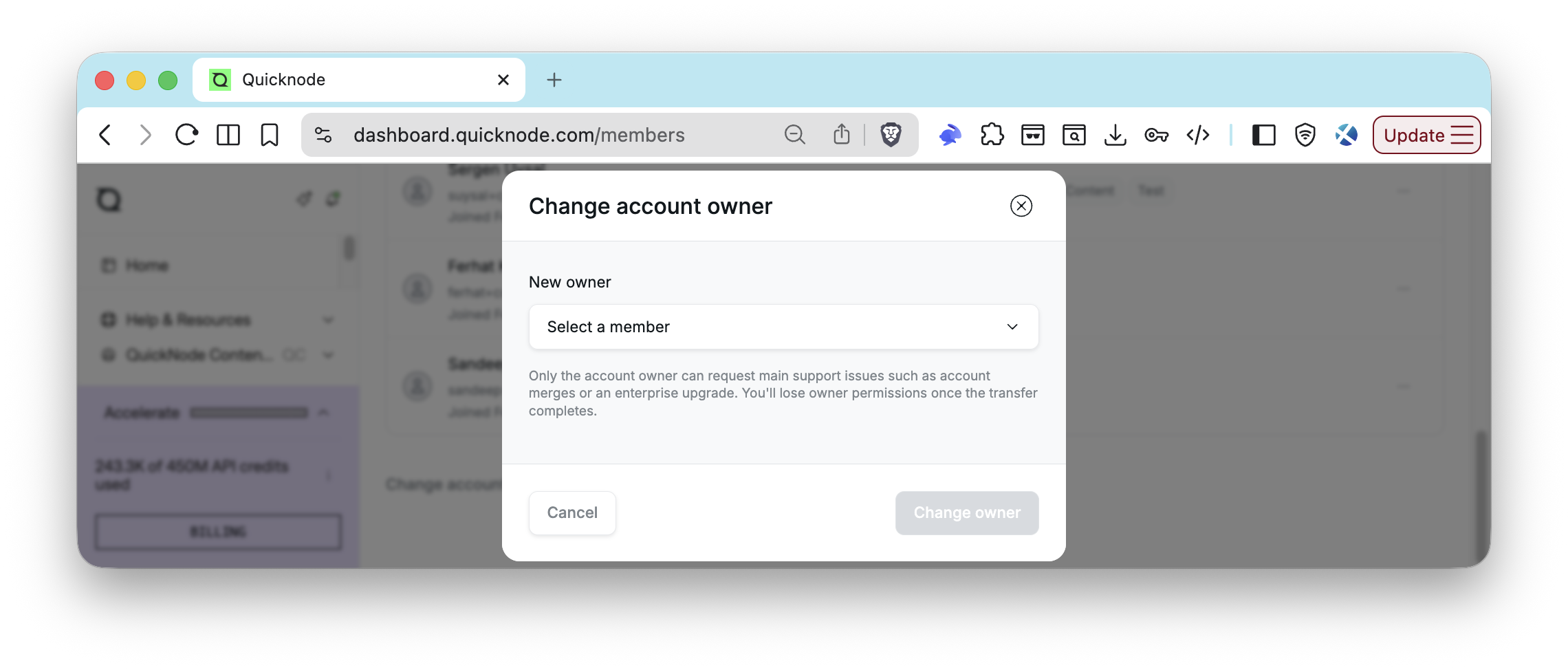
- Click Change account owner at the bottom of the page.
- Select the member you wish to transfer ownership to.
- Click Change owner.
Warning: Transferring ownership is irreversible. The current owner will lose owner status and be reassigned to an
Adminrole. Confirm you are certain before proceeding.
Joining and Switching Between Accounts
Quicknode accounts are not one-per-person. You can belong to more than one account, for example if a colleague invites you into their organization's account while you keep your own. Each membership is independent: accepting an invite does not merge, replace, or affect any other account you already belong to.
Accepting an Invite to Another Account
Clicking the link in an invite email is not enough to join the account. You must also accept the invite from inside the Quicknode dashboard.
- Log in to dashboard.quicknode.com with the email address the invite was sent to.
- A You've been invited popup appears immediately and blocks the rest of the dashboard until you respond. Click Accept.
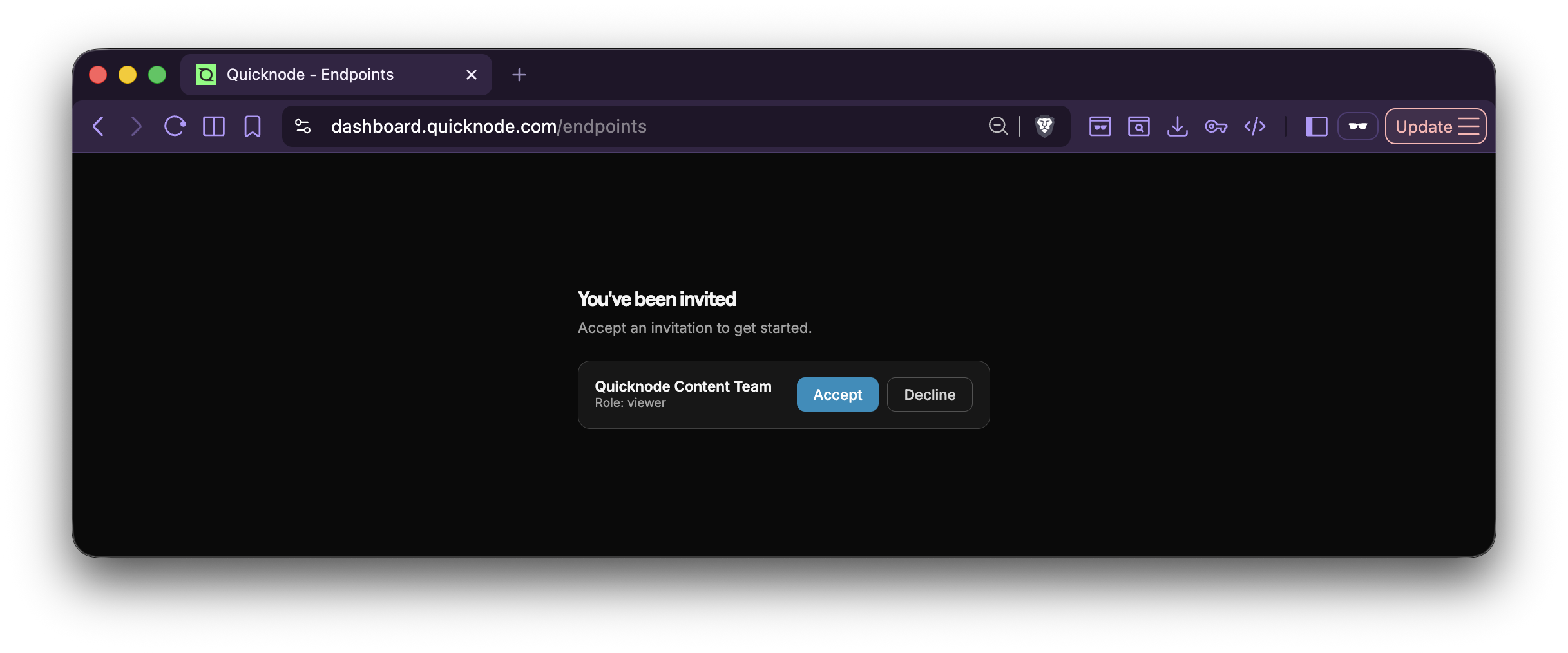
Once accepted, the new account appears in your account switcher. See Switching Between Accounts.
Note: Until you accept the invite, you show as
Pendingon the inviting account's Members page. AnAdminon that account can re-send the invite from there; see Invite a Member.
Accepting an invite is only available in the dashboard. The Admin API team control endpoints can send, resend, and revoke invites, but there is no endpoint to accept one.
Declining an Invite
Click Decline in the same popup if you don't want to join the account. Declining removes the invite entirely; so the inviting Admin must send a new invite from the Members page if you change your mind later.
Switching Between Accounts
If you belong to more than one account, switch between them from the account dropdown in the bottom-left corner. Selecting a different account reloads the dashboard scoped to that account's members, teams, endpoints, and billing.
Your Role Is Per Account
Your role is not global. Each account you belong to assigns you its own role (Admin, Billing, Viewer, or a custom role on Enterprise), independent of your role on any other account. You can be an Admin on one account and a Viewer on another.
SSO Restrictions on Joining Accounts
Multi-account membership has two restrictions for Enterprise SSO:
- If your account uses SSO, you cannot accept an invite to join another Quicknode account. The invite will not complete.
- If you already have a Quicknode account, you cannot be invited into an account that uses SSO.
If you run into either case, contact us to discuss your account setup.
Managing Teams
Teams are managed from the Teams page. Admins can create teams, add members, and control resource visibility through team assignments.
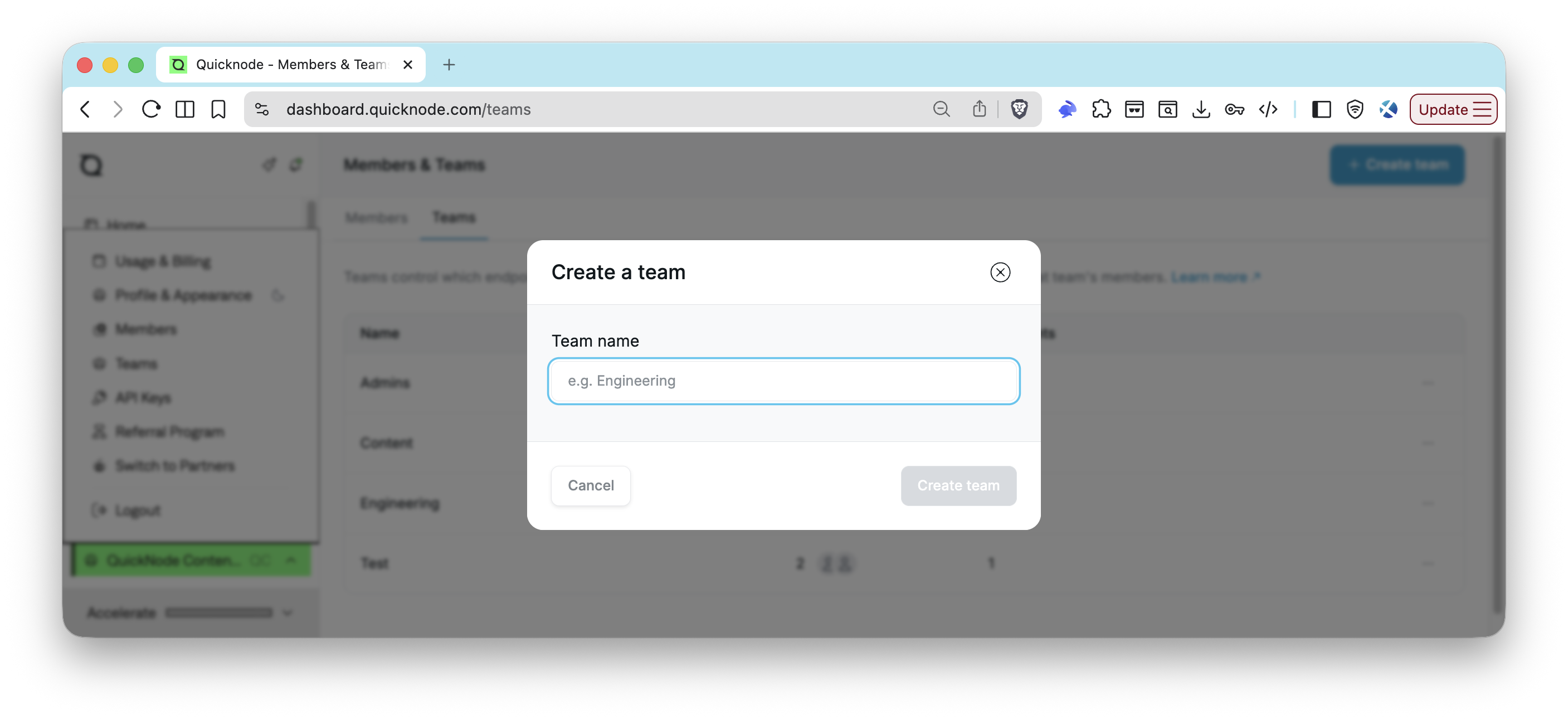
Create a Team
- Navigate to the Teams page.
- Click Create team.
- Enter a team name and click Create team.
You are automatically added as a member of the new team.
Add Members to a Team
Note: To add a member to a team, they must first be invited to your account on the Members page.
- Navigate to the Teams page.
- Select the team you want to manage.
- Click Add member.
- Search for the member and select them.
- Click Save to confirm.
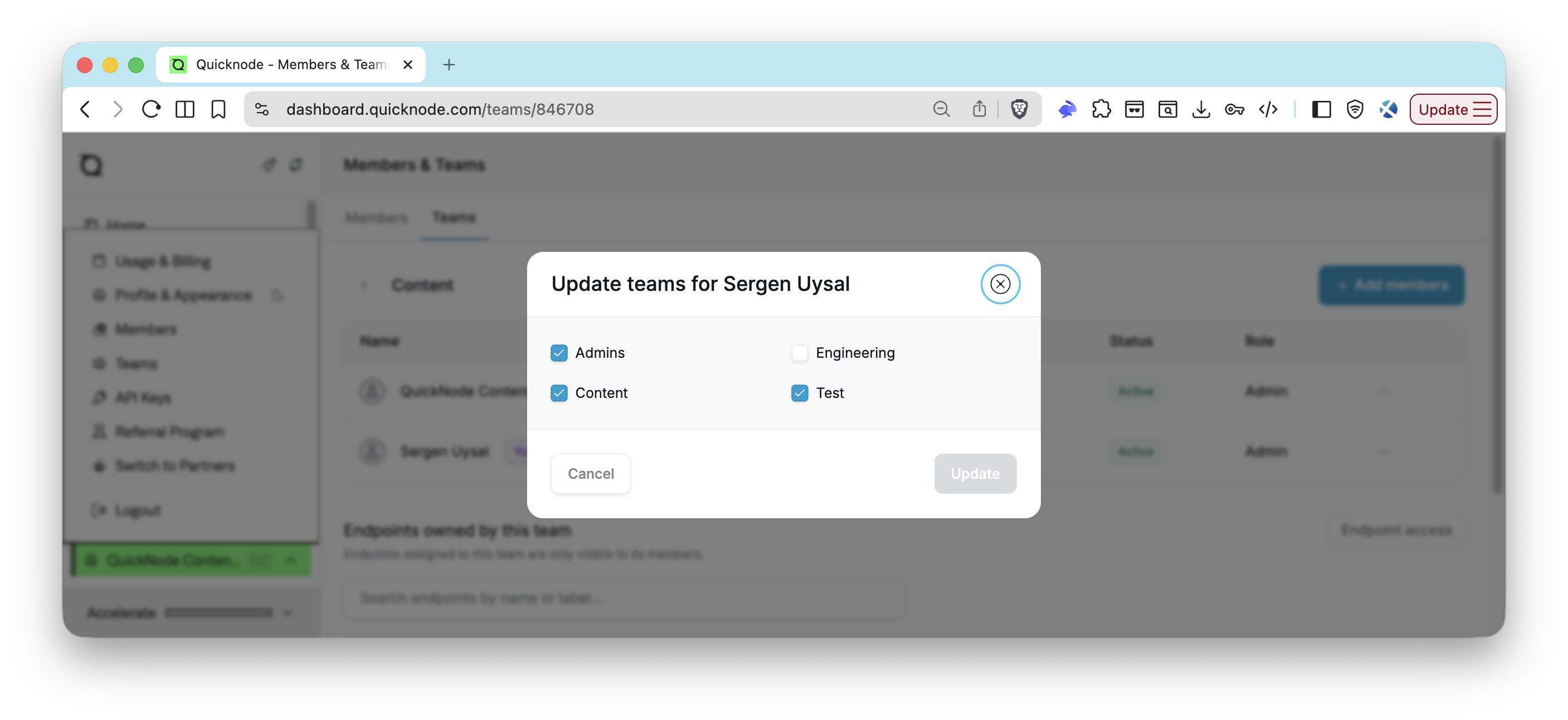
You can also manage a member's team assignments directly from the Members page: click the three dots (⋯) next to a member and select Team to update their team assignments without navigating to the Teams page.
Move or Remove Members Between Teams
- Navigate to the Teams page.
- Select the team containing the member.
- Click the three dots (
⋯) next to the member's name. - Select Teams to update their team assignment, or Remove from team to remove them.
- Confirm the action.
Note: A member can belong to multiple teams. Removing a member from one team does not remove them from the account or other teams.
Delete a Team
- Navigate to the Teams page.
- Remove all members from the team (a team must be empty before it can be deleted).
- Click the three dots (
⋯) next to the team name. - Select Remove and confirm.
Endpoint Visibility
When you assign an endpoint to a team, only members of that team can see it. If a team has no endpoint assignments, its members can see every unrestricted endpoint on the account. Endpoints with no team assignment are visible to all account members.
To assign endpoints to a team, see the Advanced Account and Team Management guide.
API Key Visibility
API keys follow the same rule as endpoints. A key assigned to a team is visible only to that team's members. A key with no team assignment is a global key, and every member of the account can see it. A key can belong to more than one team.
Team assignment also limits what a key can reach through the Admin API. A key assigned to a team can reach its team's endpoints and endpoints with no team, sees only the teams it is assigned to, and cannot create teams. A key with no team can reach every endpoint and team in the account. The key's role and application restrictions still apply. See Admin API Team Scoping for the full rules, including the metrics, usage, and logs exception.
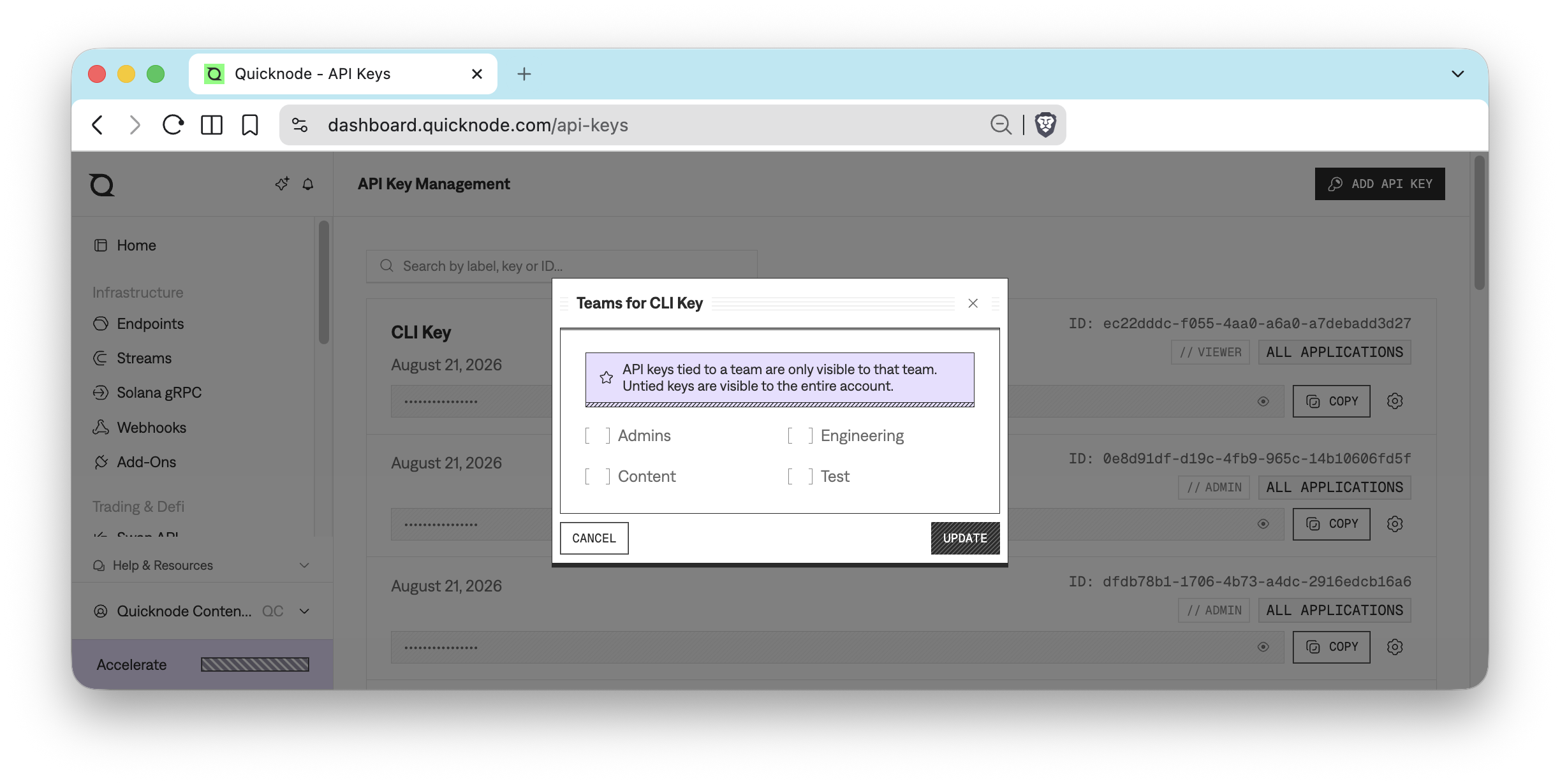
You assign a key to a team after you create it. There is no team field in the key creation dialog. Two paths lead to the same result.
Assign a Key from the API Keys Page
- Navigate to the API Keys page.
- Click the gear icon next to the key you want to scope.
- Select Teams.
- Select each team that should see the key.
- Click Update.
Assign a Key from the Team Page
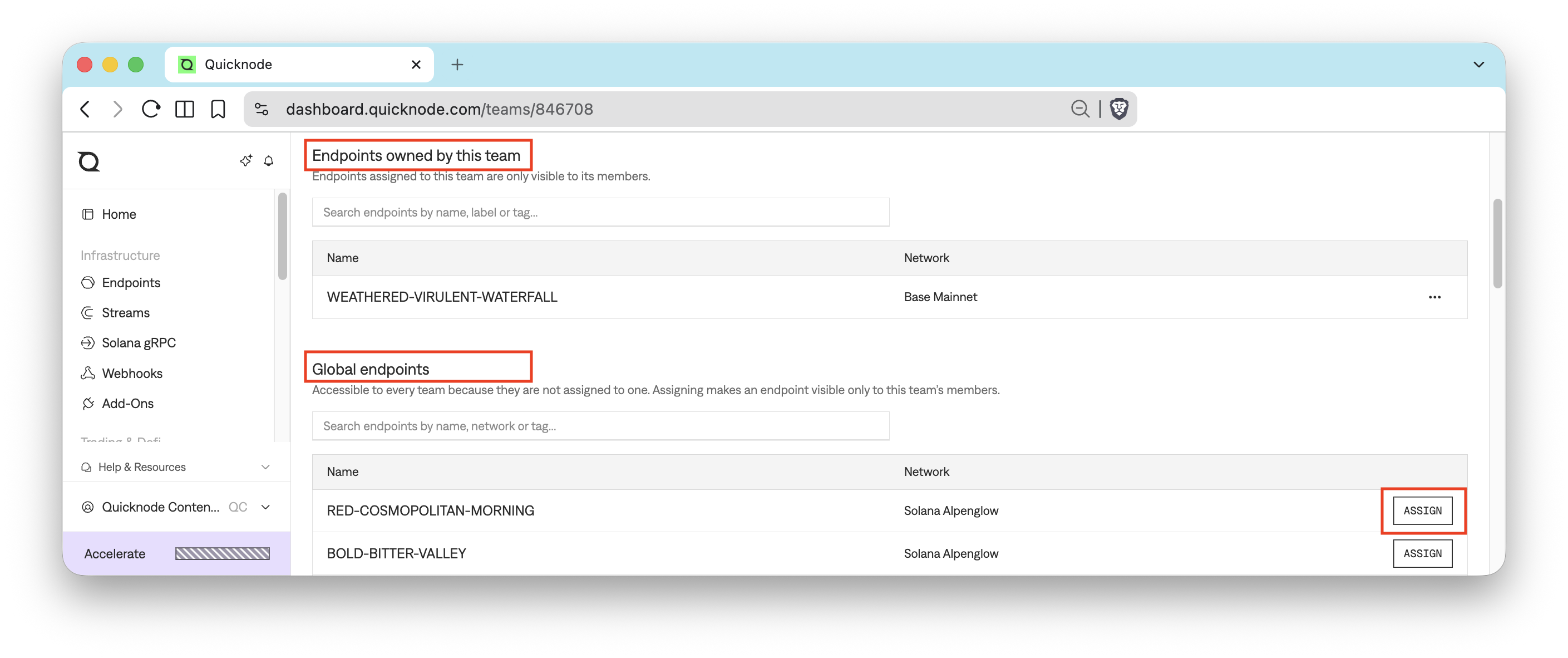
Each team page also lists the keys and endpoints it owns, next to the global ones you can still assign.
- Navigate to the Teams page and select the team.
- Find the Global API keys section.
- Click Assign next to the key you want to scope to this team.
The API keys owned by this team section above it lists the keys already assigned.
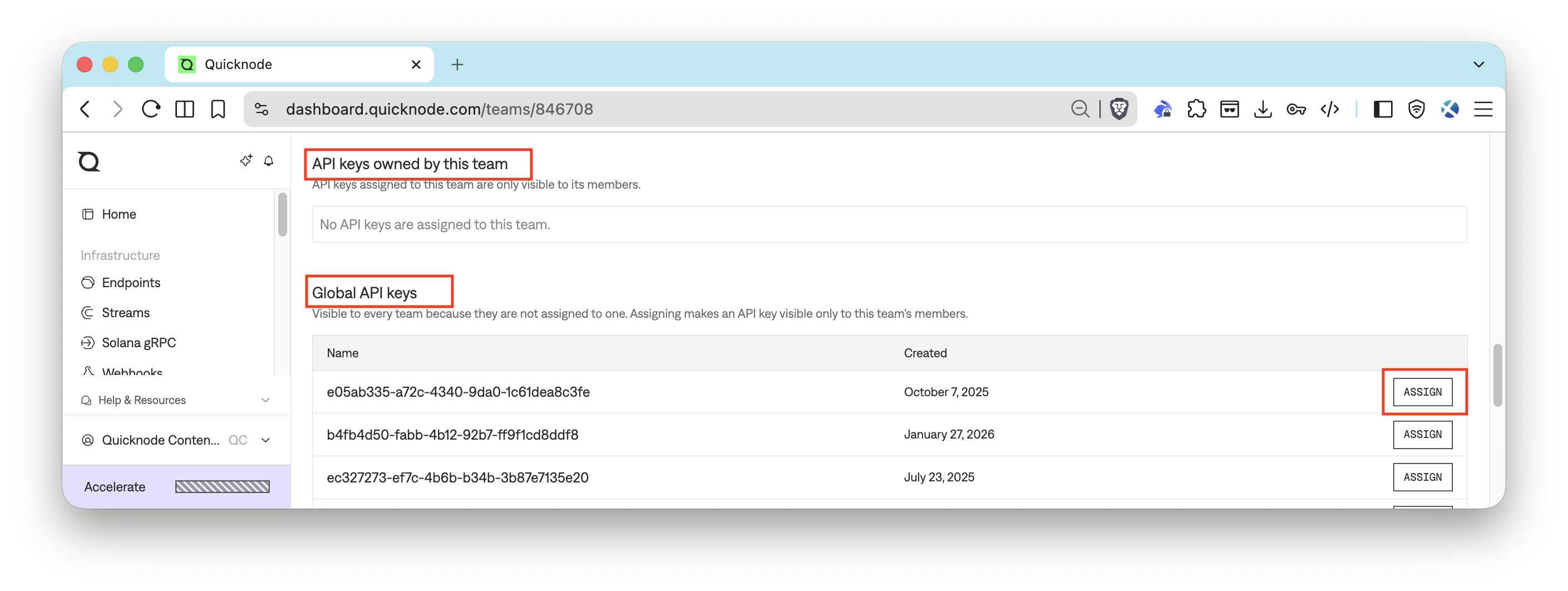
The same page pairs Endpoints owned by this team with Global endpoints, so you can assign endpoints the same way.
Note: If you delete a team, its API keys do not disappear. They lose the assignment and become global keys again, visible to the whole account.
Stream and Webhook Visibility
Streams and Webhooks can be assigned to teams, like endpoints and API keys. A Stream or Webhook assigned to a team is visible only to that team's members. One with no team assignment is visible to every member of the account. A Stream or Webhook can belong to more than one team.
To assign a Stream or Webhook to a team:
- Open the Streams or Webhooks page.
- Click the three dots (
⋯) next to the Stream or Webhook. - Select Teams.
- Select each team that should see it, then save.
Note: Deleting a team does not delete its Streams or Webhooks. They lose that team's assignment. They stay visible to any other assigned teams. They become visible to the whole account only when no team assignment remains.
Roles and Permissions
RBAC provides three built-in roles: Admin, Billing, and Viewer. These roles determine the level of access a member has across the dashboard and are assigned at the member level, not the team level. Enterprise accounts can additionally create unlimited custom roles with configurable permissions. See Custom Roles below.
User and API Key Roles
| Category | Permission or Action | Admin | Billing | Viewer |
|---|---|---|---|---|
| Account members and roles | Invite, remove, re-invite members; change member roles; view members and roles | Yes | View only | View only |
| Teams | Create, update, delete, and manage team membership | Yes | View only | View only |
| Team visibility | Manage team assignments for endpoints, API keys, Streams, and Webhooks | Yes | View only | View only |
| Endpoints (RPC) | Create, delete, configure, secure, pause, inspect logs, and view metrics | Yes | View endpoints and metrics only | View endpoints, settings, logs, and metrics |
| Quicknode products | Manage Quicknode products (e.g., Streams, Webhooks, and SQL Explorer) resources | Yes | Read-only | Read-only |
| Add-ons | Install, update, and deactivate add-ons | Yes | Yes | No |
| Billing and usage | Manage billing, plans, payments, invoices, and usage data | Yes | Yes | Usage only |
| API keys | Create, delete, and read account API keys | Yes | No | Read-only |
| AI assistant | Use the AI assistant | Yes | Yes | Yes |
| API key roles | Roles available when creating an API key | Admin or Viewer | N/A | N/A |
The table above covers the three built-in roles. Enterprise accounts can define custom roles with individually selected permissions. See Custom Roles below.
It is important to understand that user roles (for the dashboard) are scoped to a single account, and API key roles are a distinct concept altogether.
- User Roles (
Admin,Billing,Viewer) control what a person can see and do within one Quicknode account when logged into the dashboard. If you belong to multiple accounts, your role can be different in each one; see Your Role Is Per Account. For example, only anAdminuser can access the API Keys page to create or manage keys. - API Key Roles (
Admin,Viewer) define the permissions for a specific API key, determining what actions (e.g.,POSTvs.GET) can be performed when that key is used by an application or script.
These roles are not tied to each other. An Admin user can generate a Viewer key for a read-only monitoring tool, ensuring that the tool cannot make any changes, regardless of the creator's own permissions.
SSO Onboarding Integration
For teams using Single Sign-On (SSO):
- Automatic Grouping: New SSO users are automatically added to an Onboarding group with a default
Viewerrole, with auto creation of the group if it doesn't exist. - Security Assurance: This prevents inadvertent assignment of
Adminprivileges to new users. - Flexibility: Admins can later move SSO users to other groups or update their roles as required.
SSO accounts also have restrictions on multi-account membership: SSO users cannot join other Quicknode accounts, and a person who already has a Quicknode account cannot be invited into an SSO account. See SSO Restrictions on Joining Accounts for what this looks like when it happens.
Custom Roles
Enterprise accounts can create custom roles that go beyond the three built-in roles, with a large set of permissions configurable per role.
| Basic RBAC | Customizable RBAC | |
|---|---|---|
| Plans | All paid plans | Enterprise only |
| Built-in roles | Admin, Billing, Viewer | Same |
| Custom roles | Not available | Unlimited |
| Permission granularity | Fixed per role | Fully configurable |
Create a Custom Role
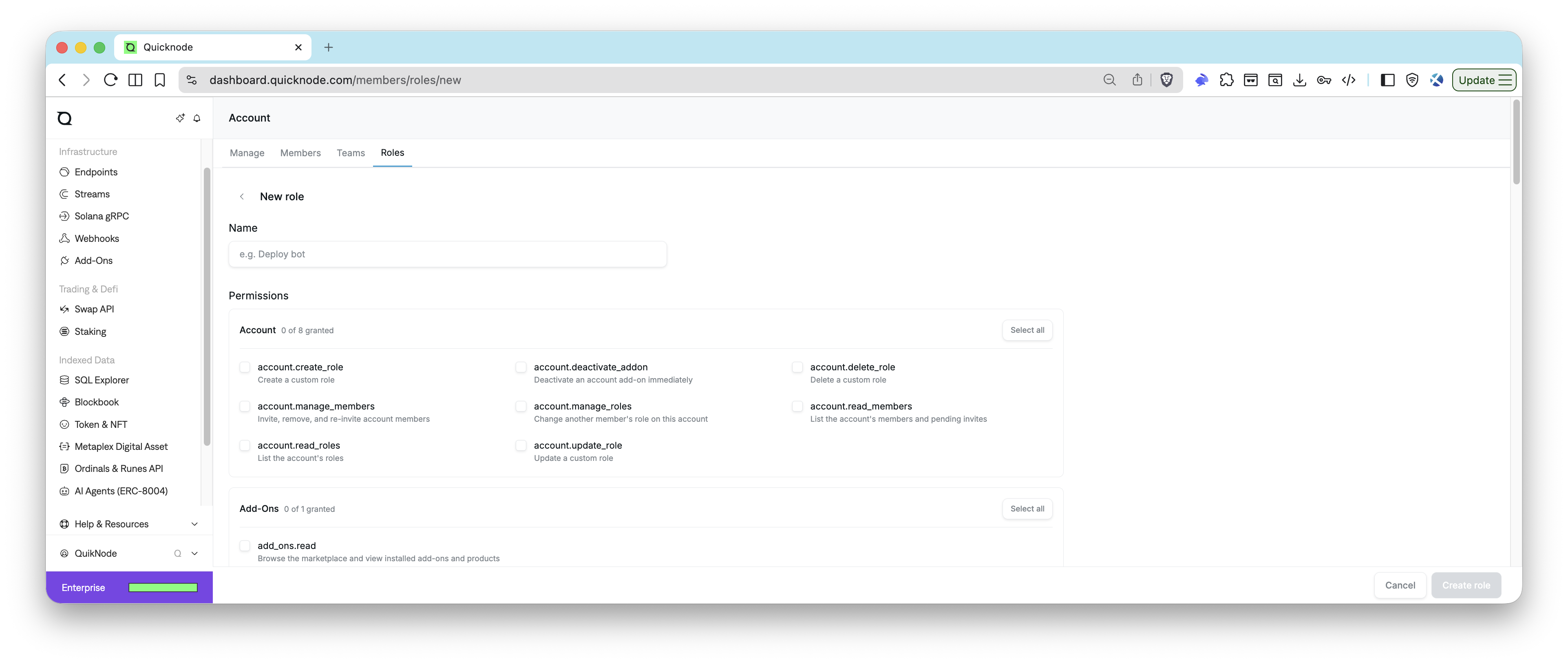
- Navigate to the Roles page by opening the account dropdown in the bottom-left corner and selecting Account and then Roles.
- Click + New role.
- Enter a name for the role (e.g.,
Deploy-bot). - Under Permissions, select the permissions to grant. Options span account management, endpoints, Streams, Webhooks, and many other categories.
- Click Create role.
View and Manage Custom Roles
All roles are listed on the Roles page. Built-in roles appear under Default roles (managed by Quicknode and not editable). Your account-defined roles appear under Custom roles.
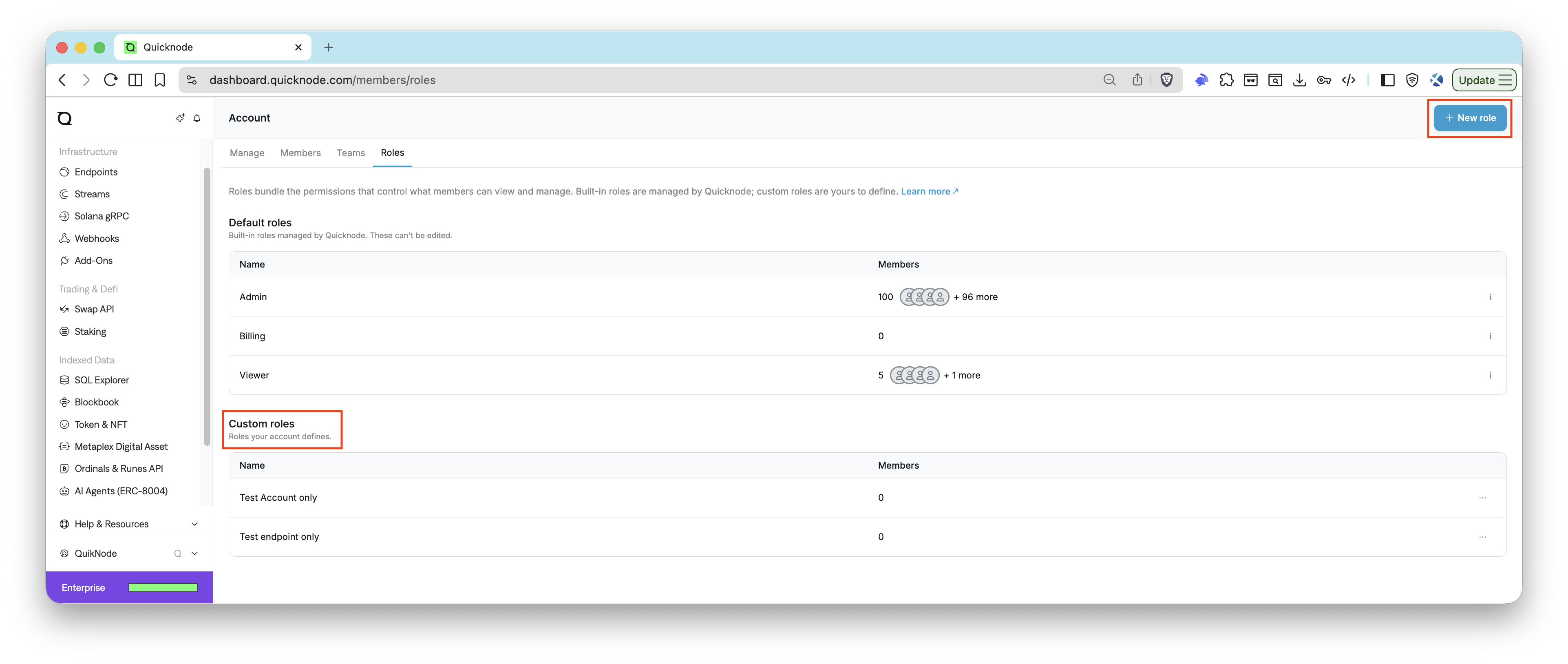
To edit or delete a custom role, click the three dots (⋯) next to the role name and select the desired action.
The Roles tab and custom role management are available on Enterprise plans only. On all other plans, access is managed through the three built-in roles.
Manage API Keys with RBAC
- Access the API Keys page by clicking the dropdown menu next to your account name at the bottom left and selecting API Keys.
- Click on Add API Key to generate a new key.
- (Optional) Restrict the key to specific applications.
- Assign a role (
AdminorViewer) to the key. - Click Create API Key and keep the key secure.
- (Optional) Scope the key to one or more teams. Click the gear icon next to the key, select Teams, and click Update. See API Key Visibility.
Generated API keys and their roles are visible for Admins in the API Keys section.
Programmatic Management with Admin API and CLI
All team management operations described above are available through the Quicknode Admin API. This enables you to automate team creation, member invitations, team member management, and endpoint assignments programmatically. Creating a team requires an API key with no team assignment and the required permissions.
If you prefer a higher-level interface for scripting or AI-driven workflows, the CLI provides a convenient alternative to raw Admin API calls and supports qn agent context for agent-based automation.
With the Admin API, you can:
- Create and delete teams: Programmatically create new teams or remove existing ones
- Invite and remove team members: Send invitations and manage team membership via API calls
- Resend invitations: Resend pending invitation emails to members
- Update endpoint access for teams: Assign or remove endpoints for a team in bulk
- List accessible endpoints for a team: Retrieve a list of endpoints assigned to a particular team
For a full reference, see the Admin API team control endpoints.
Note: API key team assignment is not in the Admin API or the CLI yet. Assign keys to teams from the dashboard. See API Key Visibility.
Conclusion
Quicknode's Members, Teams, and Roles system gives you precise control over who can access your account and which resources they can see. Members carry roles that determine dashboard permissions; teams scope endpoint, API key, Stream, and Webhook visibility independently of those permissions. RBAC is available on all paid plans. Enterprise accounts can go further with custom roles, defining exactly what each role can access to match your organization's needs.
For advanced patterns like tagging, bulk endpoint assignments, and programmatic management at scale, see the Advanced Account and Team Management guide.
For further assistance, contact us directly.
Also, stay up to date with the latest by following us on Twitter and joining our Discord and Telegram announcement channel.
Frequently Asked Questions
What is the difference between a member's role and their team membership?
A member's role (Admin, Billing, or Viewer) controls what they can do across the entire dashboard, such as creating endpoints or managing billing. Team membership only controls which endpoints, API keys, Streams, and Webhooks they can see. These are independent: a Viewer-role member with no team assignment can still see every unrestricted endpoint on the account.
Can a member belong to more than one team?
Yes. A member can be added to as many teams as needed. Their role stays the same across all teams, but each team controls a distinct set of visible endpoints.
What happens if a member is not assigned to any team?
A member with no team assignment can see every endpoint, API key, Stream, and Webhook that has no team restriction (global resources). They cannot see resources that have been assigned to a team they are not a member of.
Can I limit an API key so only one team can see it?
Yes. On the API Keys page, click the gear icon next to the key, select Teams, choose the teams, and click Update. You can also open a team page and click Assign next to the key under Global API keys. A key with no team assignment stays visible to everyone on the account.
Can I limit a Stream or Webhook so only one team can see it?
Yes. A Stream or Webhook assigned to a team is visible only to that team's members. One with no team assignment is visible to everyone on the account. A Stream or Webhook can belong to more than one team. Deleting a team does not delete its Streams or Webhooks. They lose that team's assignment. They become visible to the whole account only when no team assignment remains. The assignment controls visibility only, and a member's role still defines what that member can do.
Does assigning an API key to a team change what the key can do?
Yes, in the Admin API. A key assigned to a team can reach only its team's endpoints, endpoints with no team, and the teams it is assigned to, and it cannot create teams. A key with no team can reach every endpoint and team. The key's role and application restrictions still apply. Metrics, usage, and logs are not team-scoped yet.
What happens to a team-scoped API key if I delete the team?
The key is not deleted. It loses the team assignment and becomes a global key again, visible to everyone on the account.
How do I restrict endpoint visibility so only certain members can see an endpoint?
Assign the endpoint to a team. Once assigned, only members of that team can see it. Members on a different team, or no team, will not see the endpoint.
Can I change a member's role after they have accepted the invitation?
Yes. Go to the Members page, click the three dots next to the member, select Change role, and choose the new role. The account owner's role cannot be changed this way; transfer ownership first if needed.
What is the difference between user roles and API key roles?
User roles (Admin, Billing, Viewer) control what a person can see and do when logged into the dashboard. API key roles (Admin, Viewer) are separate and control what operations a key can perform when used by an application. An Admin user can generate a Viewer key for a read-only service without elevating that service's access.
What are custom roles and how do they differ from built-in roles?
Custom roles are account-defined roles available on Enterprise plans. Unlike the three built-in roles (Admin, Billing, Viewer) which have fixed permission sets managed by Quicknode, custom roles let you select individual permissions across categories like account management, endpoints, Streams, Webhooks, and more. You can create unlimited custom roles and assign them to members just like built-in roles.
Can I edit or delete a built-in role?
No. The built-in roles (Admin, Billing, Viewer) are managed by Quicknode and cannot be edited or deleted. To define a custom permission set, create a custom role on the Roles page (Enterprise only).
I clicked the invite link in my email but I don't see the new account. What's wrong?
The invite email itself does not add you to the account. Log in to the dashboard with the invited email address: a "You've been invited" popup appears immediately and blocks the rest of the dashboard until you accept or decline it. Once accepted, the account appears in your account switcher.
Can I have a different role on each account I belong to?
Yes. Your role is assigned per account, not globally. You can be an Admin on one account and a Viewer on another, and accepting a new invite never changes your role on any account you already belong to.
Why can't I accept an invite to an account that uses SSO?
Enterprise SSO has two restrictions on multi-account membership: SSO users cannot join other Quicknode accounts, and a person who already has a Quicknode account cannot be invited into an SSO account. If you hit either case, contact us to discuss your account setup.