Azure Blob Storage destinations let you archive stream data to Microsoft Azure, ideal for data warehousing, analytics, and long-term storage of blockchain data.
Why use Azure Blob Storage?
- Enterprise-Grade Storage: Built-in redundancy, high availability, and compliance features for enterprise requirements
- Cost Optimization: Multiple storage tiers (Hot, Cool, Archive) to optimize costs based on data access patterns
- Global Reach: Data centers worldwide for low-latency access and compliance with regional data requirements
- Integration Ecosystem: Seamless integration with Azure services like Data Factory, Synapse Analytics, and Power BI
- Security Features: Advanced security features including encryption at rest and in transit, and fine-grained access control
선행 조건
Before configuring Azure Blob Storage as a destination, you need:
- A Microsoft Azure account
- An Azure Storage Account
- A Storage Container
- A Shared Access Signature (SAS) token with appropriate permissions
Azure Setup
Creating a Storage Account
- Log into the Azure Portal
- Click Create a resource → search for "Storage account"
- Configure:
- Subscription: Your Azure subscription
- Resource group: Select or create one
- Storage account name: Enter a unique name
- Region: Your preferred location
- Performance: Standard (recommended)
- Redundancy: LRS or your preferred option
- Click Review + create → Create
Creating a Container
- Open your storage account in the Azure Portal
- Go to Containers under Data storage
- Click + Container
- Enter a name (e.g.,
blockchain-data) - Set Public access level to Private
- Click Create
Creating a SAS Token
- Open your storage account in the Azure Portal
- Go to Shared access signature under Security + networking
- Configure permissions:
- Allowed services: Blob
- Allowed resource types: Container, Object
- Allowed permissions: Read, Write, Create, Delete
- Set Start and Expiry dates
- Click Generate SAS and connection string
- Copy the SAS token (starts with
?sv=)
Configuration
Follow the Quickstart Guide to create a stream. When you reach the destination step, select Azure Storage and configure the following fields:
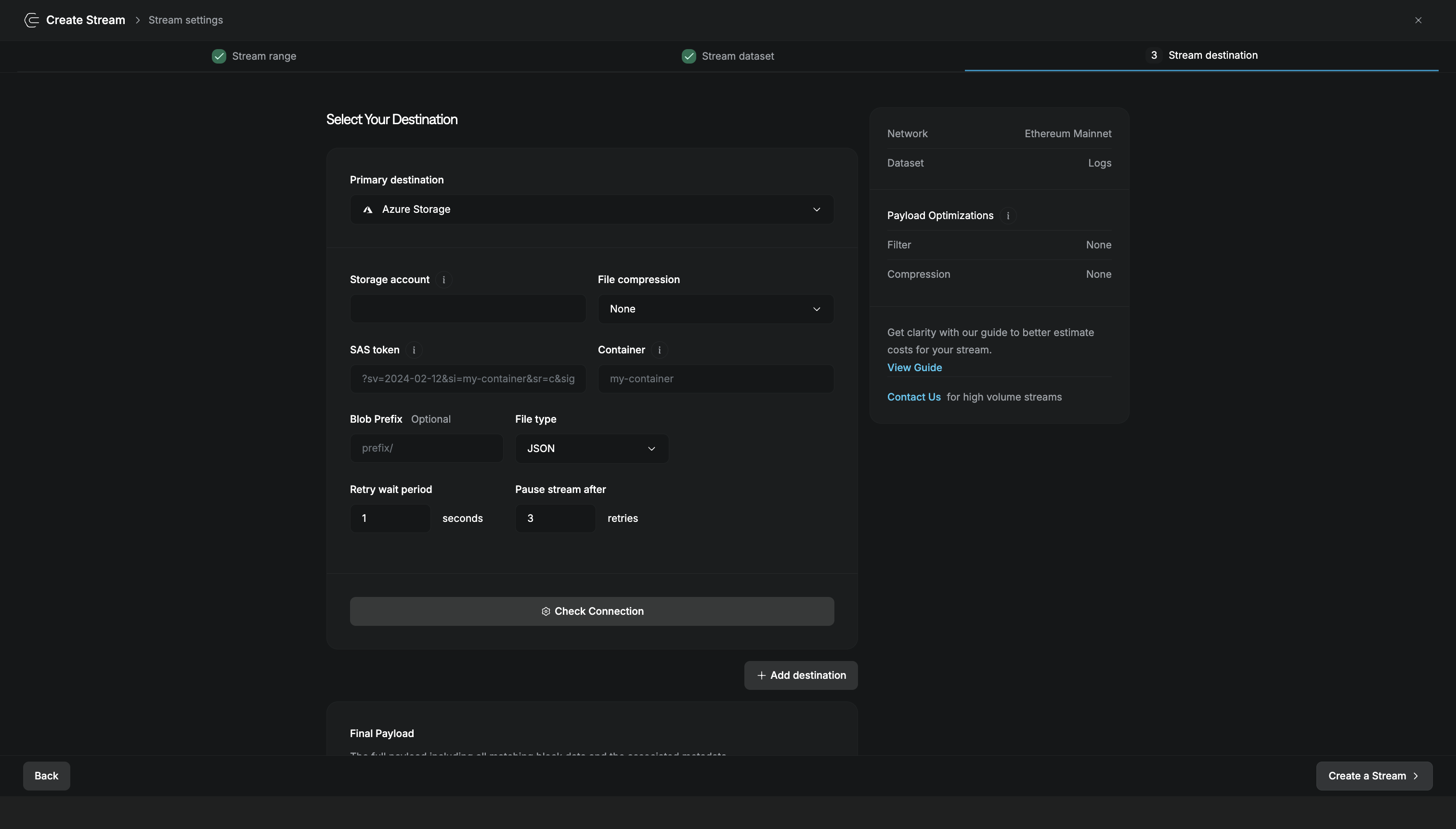
| 분야 | 설명 |
|---|---|
| Storage account | Your Azure storage account name |
| File compression | None for human-readable files, or Gzip for smaller file sizes |
| SAS token | Shared Access Signature token with read/write permissions for the container |
| Container | Name of the blob container where files will be written |
| Blob Prefix | Optional path prefix for organizing blobs (works like folders) |
| File type | Output format for the data (JSON) |
| Retry wait period | Seconds to wait between retry attempts when writes fail (default: 1) |
| Pause stream after | Number of failed retries before the stream pauses (default: 3) |
Click Check Connection to verify your storage account and container access before creating the stream.
Example Configuration
Here's an example of the destination attributes when creating a stream via the REST API:
{
  "name": "Ethereum Block Stream",
  "network": "ethereum-mainnet",
  "dataset": "block",
  "destination": "azure",
  "destination_attributes": {
    "storage_account": "myblockchainstorage",
    "container": "ethereum-data",
    "sas_token": "sv=2020-08-04&ss=b&srt=sco&sp=rwdlacupx&se=2024-12-31T00:00:00Z&st=2024-01-01T00:00:00Z&spr=https&sig=...",
    "blob_prefix": "mainnet/blocks/",
    "file_compression_type": "gzip",
    "file_type": ".json",
    "max_retry": 3,
    "retry_interval_sec": 2
  },
  "batch_size": 100,
  "elastic_batch_enabled": true,
  "status": "active"
}
Other Destinations
Deliver stream data to your HTTP endpoint in real-time.
Archive to Amazon S3, GCS, Backblaze B2, and more.
Store in a relational database for SQL queries and joins.
Stream to Apache Kafka for high-throughput pipelines.